> For the complete documentation index, see [llms.txt](https://konstru.gitbook.io/konstru-manual/llms.txt). Markdown versions of documentation pages are available by appending `.md` to page URLs; this page is available as [Markdown](https://konstru.gitbook.io/konstru-manual/konstru-general-knowledge/konstru-mapping.md).
# Konstru Mapping
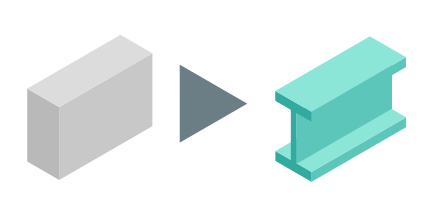
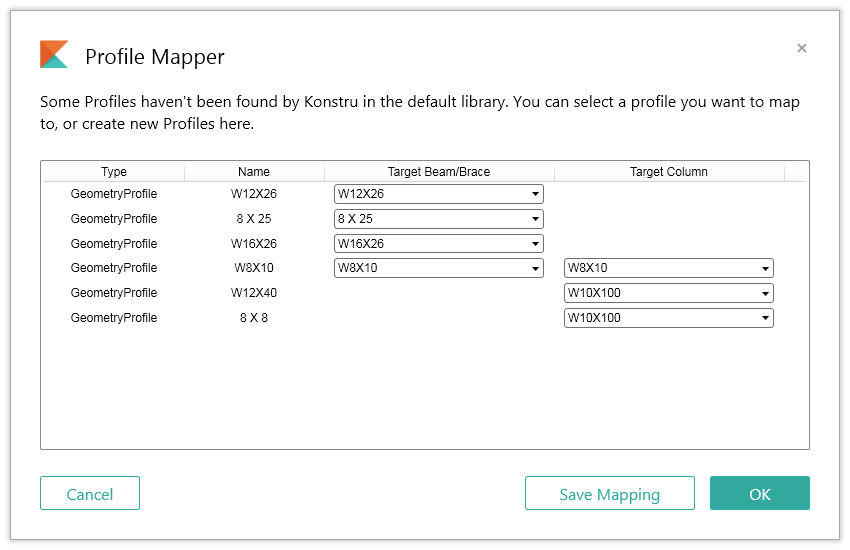
Profile sections are easily becoming an issue when working in two different environments. First, not all are simply named the same. Revit uses EDI Standard names where CSI tools are using AISC naming. Let alone Eurocodes where some label sections IPE400, IPE-400 or 400IPE. To make things easier for you and for us we implemented a profile section mapper. This mapper will show you all section sizes and what we think you should map it to. However you can change this if you want to.
Let me explain our mapping procedure with Revit:
Konstru first searches for known section profiles using AISC & EDI names in the Revit library. If not found it can create new families on the fly. Konstru Revit has the following priority order to find new types and families:
|  | 1. Matching typename & category in the Revit project.
eg. Downloading Column with Profile Type 20X40: if a type 20X40 of structural columns category is present Konstru will map to this.
|
| --------------------------------------------------------------------------------------------------------------------- | ------------------------------------------------------------------------------------------------------------------------------------------------------------------------------------------------------------------------------------------------------------------------------------------------------------------------------------------------------------------------------------------------------------------------------------- |
|  | 2a. Looking for default families: If the profile section we are looking for is square, rectangular or circular of material concrete or timber:
Use default families, shipped with Konstru, to create new types (eg. 20 x 40) and load this type. Default families can be changed in the Konstru Settings menu or by replacing the files in %AppData%/Autodesk/Revit/Addins/2017/Konstru/Families.
|
|  | **2b. Looking for default families: For all other sections** (eg. W18X40) search for the type name in the Revit library folder, first looking into folders like AISC. If the typename has been found Konstru will load it and map to it. |
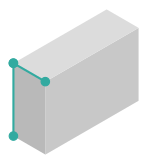
|  | **3. If none of those approaches was successful, create a new family by using the default templates**, also shipped with Konstru, from Konstru Settings. In this case Konstru will draw the section profile into the family, extrude it, load it into the project and map to it. |
Now if you download a model you'll always come across one of our mappers and its going to look like this:
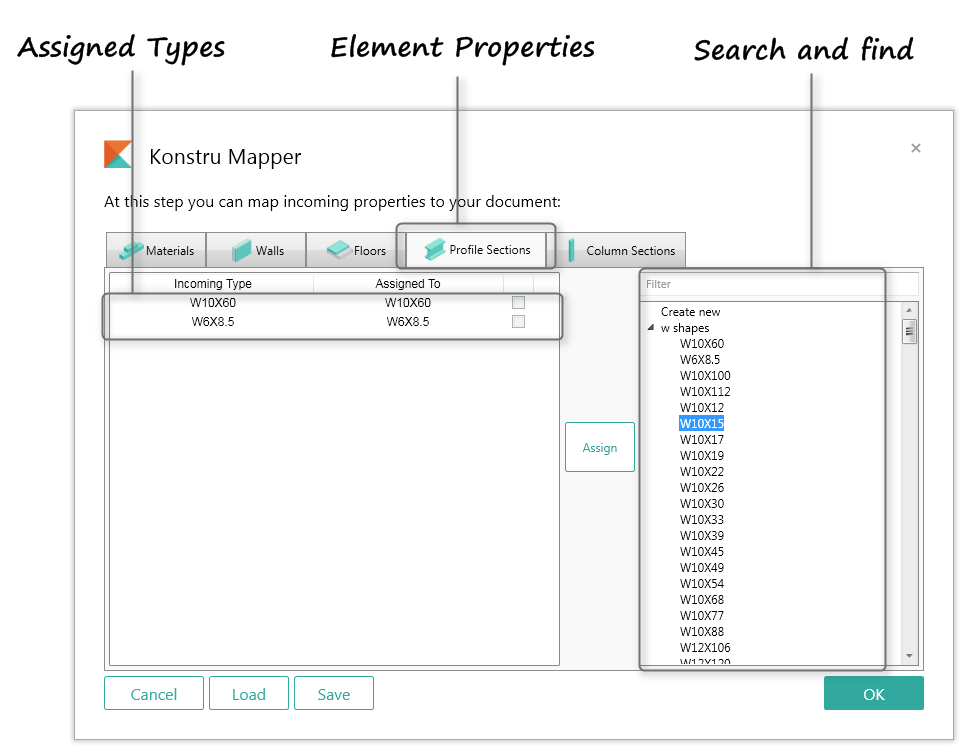
**Incoming Type** shows the section name as it is in Konstru and **Assigned To** shows the target family types Konstru suggests to map to. On the right side you will find all available types found in your document, you can change the assignment by selecting a different type and click Assign. All unidentified sections are usually mapped to **Create New** which creates a new family automatically.Konstru allows you now to save mappings locally to reuse them other times. So if you want to setup a mapping to your company defaults you can easily do so, save mappings and use them for future downloads.
Simply click the **Save Mapping** button in our mapping dialog. Next time the mapping dialog opens, it will check for a saved mapping first and load it first. So your targets will be selected automatically.
we recommend you to load the families you want to map to into your documents. This makes it easier for Konstru to find them.