
What can I do on the Web app?
Add Friends and Coworkers

Invite you friends or coworkers to your Konstru model. Simply go to the People tab in your model view and click Invite a user on the right hand side.


A dialog will appear which prompts you for the email address you want to send the invite to and the role you want to assign. You can read more about permissions or roles here. Once done simply click invite and the user will receive a notification including a link to the model.

Permissions

Permissions can be set per Model and per Organization.
Organization Permissions:
You are only able to edit Organization permissions as an Organizaton Admin. To view or edit collaborators of an organization, click on your Profile Name in the top right corner, and select the Organization you want to edit. Then, click on the People Tab.
Here, you can invite a new collaborator by providing their email address and one of the following permission settings:
ADMIN
Administrators have access to ALL of the organization's models.
MODELER
Modelers can create new models, and they can edit the Org's Filter Settings
VIEWER
Viewers can only work in the Model that they are a collaborator of.
LIMITED
Limited users can only look at reports they've been assigned to.
When upgrading an Organization collaborator to Admin Status, they automatically get Admin access to all existing and new models.
Instead of inviting a collaborator to an organization, you can also directly invite them to a model. We generally prefer to do so to avoid having to set somebody's permissions twice.
Model Collaborators with Model and Admin permissions will automatically be added to the organization with Modeler rights.
Model Collaborators with Viewer or Limited permissions will be added as an organization collaborator with these rights respectively.
Model Permissions:
When creating new Models, only the Organization Admins are added as Model collaborators. All other existing organization collaborators (MODELER, VIEWER, LIMITED) do not have access to new models. You have to specifically invite them as collaborators. When invite new users as model collaborators, you have to specify their permissions. These can be changed at any point.
You can see all collaborating users on a model if you switch to the People tab for that Model. Each user is listed there with name, email and permissions. You can change permissions simply by using the provided dropdown:

ADMIN
Administrators are able to delete models and invite other collaborators. Additionally they have all MODELER rights.
MODELER
Modelers can upload changes to the model using our desktop clients. They can also create new models, and manipulate the organization's filter settings.
VIEWER
Viewers can only download a model or view it online.
LIMITED
Limited users can only look at reports they've been assigned to.
Locking a Model
Konstru provides the ability to lock a model for a predetermined period of time. Once locked, the model can only be updated by the person that locked it. You can set the lock status and duration under the model settings tab in the Konstru web UI.

In unlocked state

In locked state
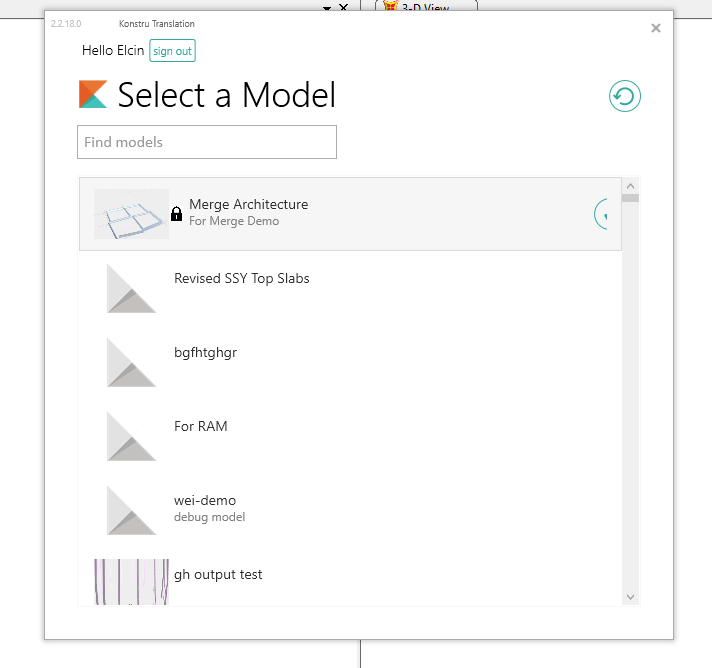
The desktop plugins indicate if a model has been locked an do not allow anybody other than the person that locked the model to upload:
Model Comparison

Very often you'll find yourself a situation asking what's the difference between two Models. Konstru comes with a very powerful comparison engine. It doesn't only display differences between two models but lets you break differences down by properties. For example you can tell Konstru to display differences on section sizes only but ignore differences in geometry.
To view differences between your versions simply select View By Change on the right hand side of your model view:

Now at first sight, in our example above, Konstru doesn't highlight anything as being changed. But it compares to a version called "Changed wall section". Now this is because the wall thickness is an attribute and attributes are deactivated by default. To activate them click the little cog icon and check the Attributes checkbox:

Once checked the comparison view will update and display a changed element (3).
But you can also compare across multiple versions if you want to. Just select a different version to compare to, for example your first upload:

Now Konstru displays all changes from the first upload until the current version. If you want to explore a change in detail simply click the element you are interested in and Konstru will display what changed on the right hand side:

Visualize your Data

With Konstru you can easily visualize your model by different properties. This makes it easy for you to spot odd ones out or simply check values.
Simply use the View By dropdown on the right hand side in your model view:

There are five predefined settings to automatically colorize your model by selected attributes:
color by Element Type (helps identify braces modeled as beams, for example)
color by Material (gives an overview of which materials are used where)
color by Profile Section
color by Geometry (can help determine where arcs or splines are used, for example)
color by Rotation Angle


By Material
By Type
By Custom Attribute (Top Offset)
Additionally, Konstru gives you the option to color the elements in the model based on any other attribute present in the model.
In the image at the top, the model is colored based on 'Shear End Forces" coming out of SAP2000.
Clone a Model

Konstru allows you to clone models. This might be helpful if you want to work on a copy of a model to develop something entirely else or just share the copied model with someone else.
To clone a model, click "Copy this Model" on the right hand side of your model view.
Now in the dialog that appears, specify the models name and description and click Copy Model to finish.

Last updated